Business Cards

Business Cards

High quality business card printing service offering discount pricing for professional results.

How to Order Business Cards

  1. Enter a unique name in the Job Name box
  2. Choose an option for Artwork/Graphic Design from the dropdown menu.
  3. Click the Choose File button to Upload Your File (PDF files only, see File Preparation for Print for more info)
  4. Choose a Paper Option*
  5. Choose an Ink Option*
  6. Enter the quantity in box left of the Add to Cart button
  7. Price will auto update
  8. Review your selections and once you are satisfied click the Add to Cart button.

Specifications:

  • Paper - choice of #100 uncoated cover or 14 pt. C2S coated (glossy) cover
  • Size - 3 1/2" x 2" (landscape) or 2" x 3 1/2" (landscaped)
  • Ink Color Options - Choice of Black or Color Ink
  • 2 Sided - Yes, optional printing on the back side in black or color ink
  • File requirements - PDF file exported from most popular native graphic design or desk top publishing programs (i.e. Adobe products, Microsoft Products, etc.)
  • Shipping - UPS ground, 2nd Day or Next Day available nationwide (shipping options selected in the shopping cart)

File Prep Requirements for Business Cards Designs:

For business cards the standard layout is 3.5"x2" for landscape designs and 2"x3.5" for portrait designs.  A minimum margin of 1/8" (0.125") or more is required to ensure important information does not fall into the cut of the card edges.  You may have some graphic design features that you intend to print right to the cut edge such as a background color or image, and this is known as bleed.  For any bleeds you must include a minimum of 1/8" (0.125) bleed area beyond the edge of the layout design.  Without this extra bleed area you may have a white border if you have edge to edge color.  This means any bleed must extend beyond the business card edges by 1/8" (0.125) on any side that has ink bleed to the edge of the card.  Some software such as Adobe InDesign allows for bleed area without altering the document size of 3.5x2" by adding in the bleed amount in the page setup, however other software such as Microsoft Word does not.  As a work around you can enlarge your document size to create the additional bleed area requirements, for example if your business card bleeds on the top, bottom, left and right then you would need to make your document 3.75" wide by 2.25" tall as shown in the illustrations below.  Crop marks indicating cut lines are also required to be included for any bleed if your software supports crop marks.  We do not use bleed marks (marks that mark the outer edge of the bleed area) and so they are NOT required and we prefer you not use them.

What is exactly is bleed on a business card?:

Bleed is when ink on a printed document, such as a business card, extends to the edge of the sheet.  This is achieved by extending the area that bleeds of the edge of the sheet (such as a background color) past the edge of the document by 1/8" (0.125") on each edge of the printed document.  Once the job is completed printing it will then be cut down to the proper size in the bindery department, this is when the additional 1/8" bleed you added to the card design is cut away to ensure you have ink to the edge of the card and not any undesired white space or margin.

Creating your Digital Artwork File for Business Cards:

There is a vast array of desk top publishing and professional graphic design software available to create a graphic design business card printing file.  Regardless of what software title you use to create your business card graphic design file it should be converted to a PDF file for uploading to our website.  Most programs available today support either saving the graphic design as a PDF file or exporting it to a PDF file.  When exporting to a PDF file you want to make sure any fonts are embedded so that when we open the file if we don't have a particular font you used on our system the file will have it embedded eliminating a missing font error.  Another important setting is to design and save using CMYK color space which is preferred over RGB to reduce any undesired color shifts as our system will convert RGB to CMYK.  Also, you want to save or export the file using a "High Quality Print" or "Press Quality".  Some software may use different wording for this but choose the setting that will allow the highest quality.


Business Card Template (no bleed)

Business Card Template (with bleed)

Ask a Question

Please Choose:

Job name or file name (i.e. Jim's Business Cards)

Choose to use your supplied print ready file or have it professionally designed for you:

Upload your print ready PDF file here:


Choose the paper type and/or color (some products only have 1 option):

Choose an option from the drop down list of how your job will be printed:


A generic image
Black Ink Front/Blank Back (1/0)

A generic image
Black Ink Front/Black Ink Back (1/1)

A generic image
Color Ink Front/Blank Back (4/0)

A generic image
Color Ink Front/Black Ink Back (4/1)

A generic image
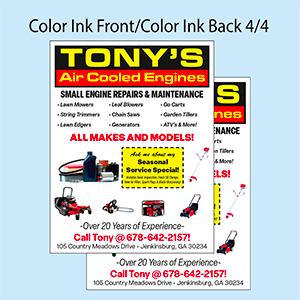
Color Ink Front/Color Ink Back (4/4)
* One time charges may apply

* One time charges may apply

Min:  100
Add to Cart: